Vinyl Sticker
Cut a vinyl star decal sized for a mug. This is the shortest way to get comfortable with the whole Cricut workflow — design, mat, blade, cut — before you try something you care about.
Read this first: the Cricut (Explore 4) manual. It covers the machine’s controls, loading the mat, and what to do if something goes wrong.
1. Set up Design Space
Section titled “1. Set up Design Space”Open Cricut Design Space on the lab computer, or install it on your own laptop by following Setting up Design Space in the manual.
2. Create the design
Section titled “2. Create the design”- Select New Project.
- Choose Vinyl Decal from the project-type menu.
- Choose the size for a mug, then click Create.
- Open Shapes in the sidebar and place a star on the canvas.
- Click Make in the top right, and save the project when prompted.
3. Set up the cut
Section titled “3. Set up the cut”-
Choose On Mat when asked how your material loads, and select the 12 in × 12 in mat size.
Use a mat for this exercise even if you have Smart Materials — the point is to learn the mat.
-
Peel the clear plastic film off the mat and set it aside; you’ll put it back at the end. Press the vinyl onto the mat.
-
Check that there’s actually vinyl underneath where the star sits in Design Space’s mat preview. If there isn’t, drag the star to a spot on the preview that matches where your vinyl is.
-
Click Continue and select your vinyl in Browse All Materials.
-
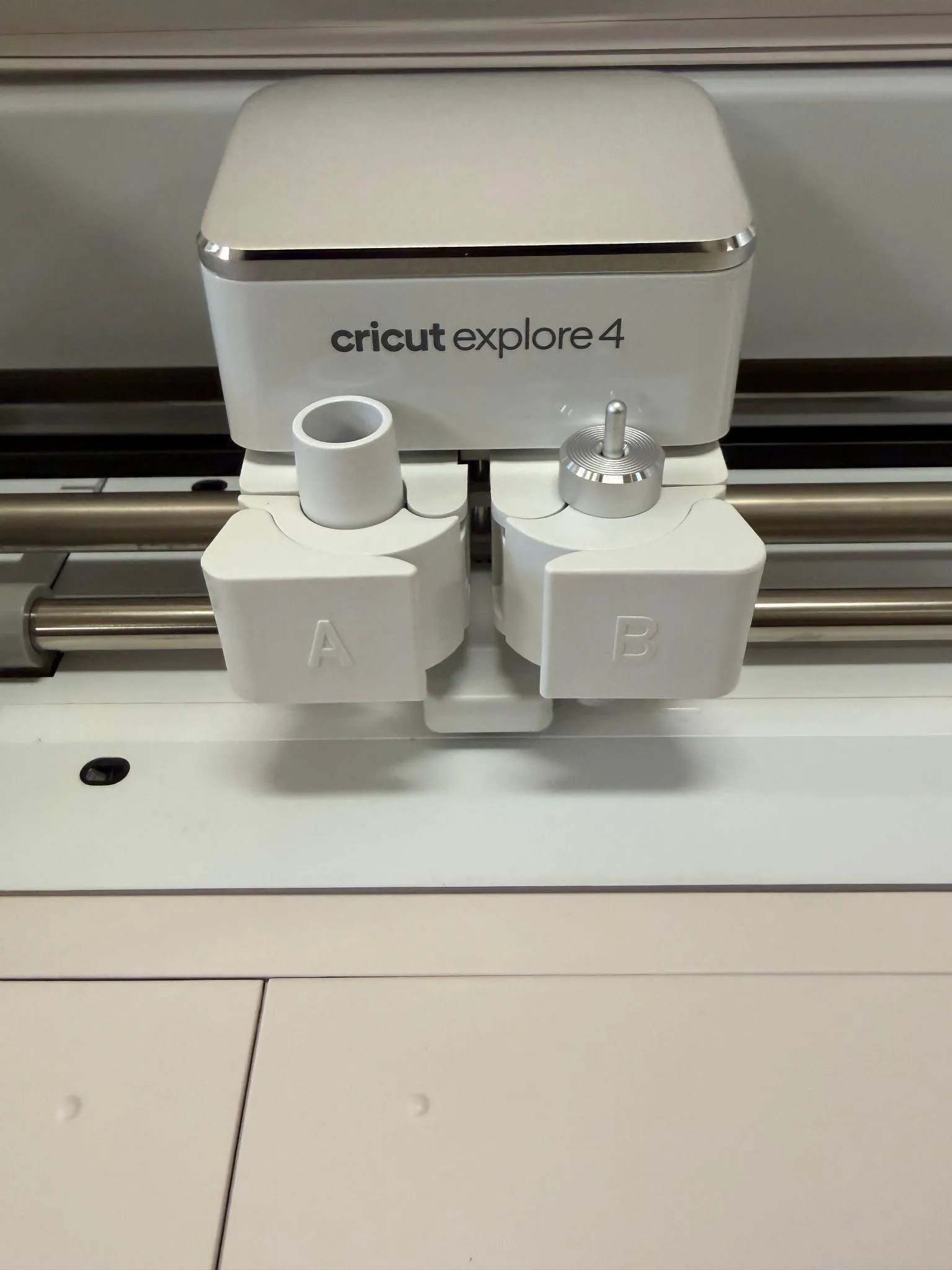
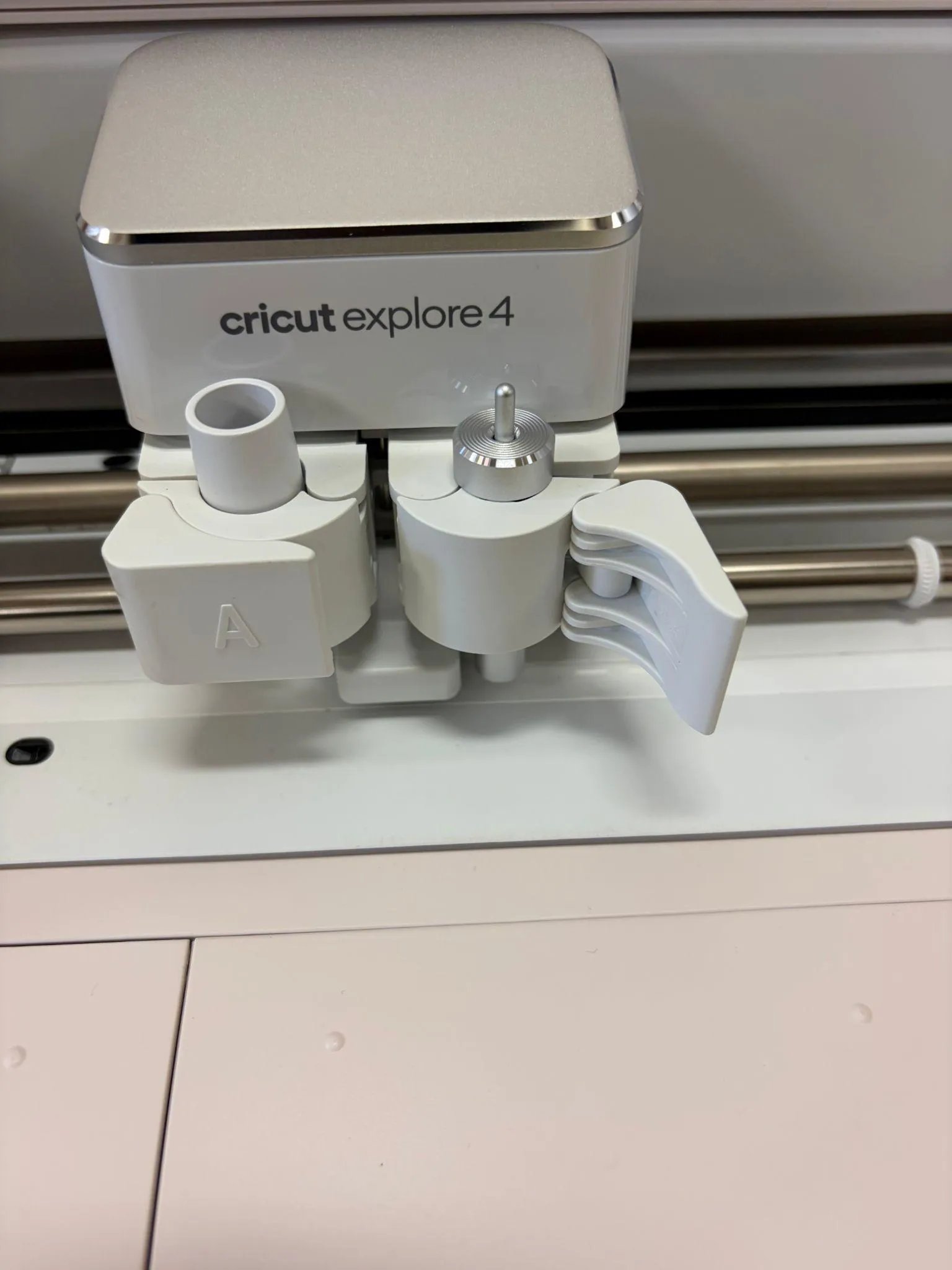
When Design Space asks you to load tools, open Clamp B and seat the fine-point blade. If the blade is already in place, open and close the clamp without changing anything.
-
Power on the Cricut and hold the mat flat against the material guides, up against the rollers. Press the Load button and keep holding the mat until the rollers pull it in.
4. Cut
Section titled “4. Cut”Press the Go button once it starts flashing. Stay at the machine while it cuts.
When it’s done, press Load/Unload to release the mat, peel the vinyl off the mat, and weed out the waste vinyl around the star. Put the plastic film back on the mat.
5. Clean up
Section titled “5. Clean up”Follow Finishing up in the manual: return the mat and material, clear your scraps, and turn the machine off.
Comments
Something on this page wrong, missing, or not matching the machine in front of you? Say so here — comments are public and staff read them. Posting needs a free GitHub account, the same one the Edit page flow uses; if you already know the fix, editing the page is the faster route. Comments are readers talking to each other, not checked instructions — for anything urgent or safety-related, ask staff in the lab or on Discord.